Signing in
CloudPACS uses your organisation's Microsoft account for sign-in. There is no separate CloudPACS username or password.
Steps
-
Go to the CloudPACS login page and click Sign in with Microsoft.
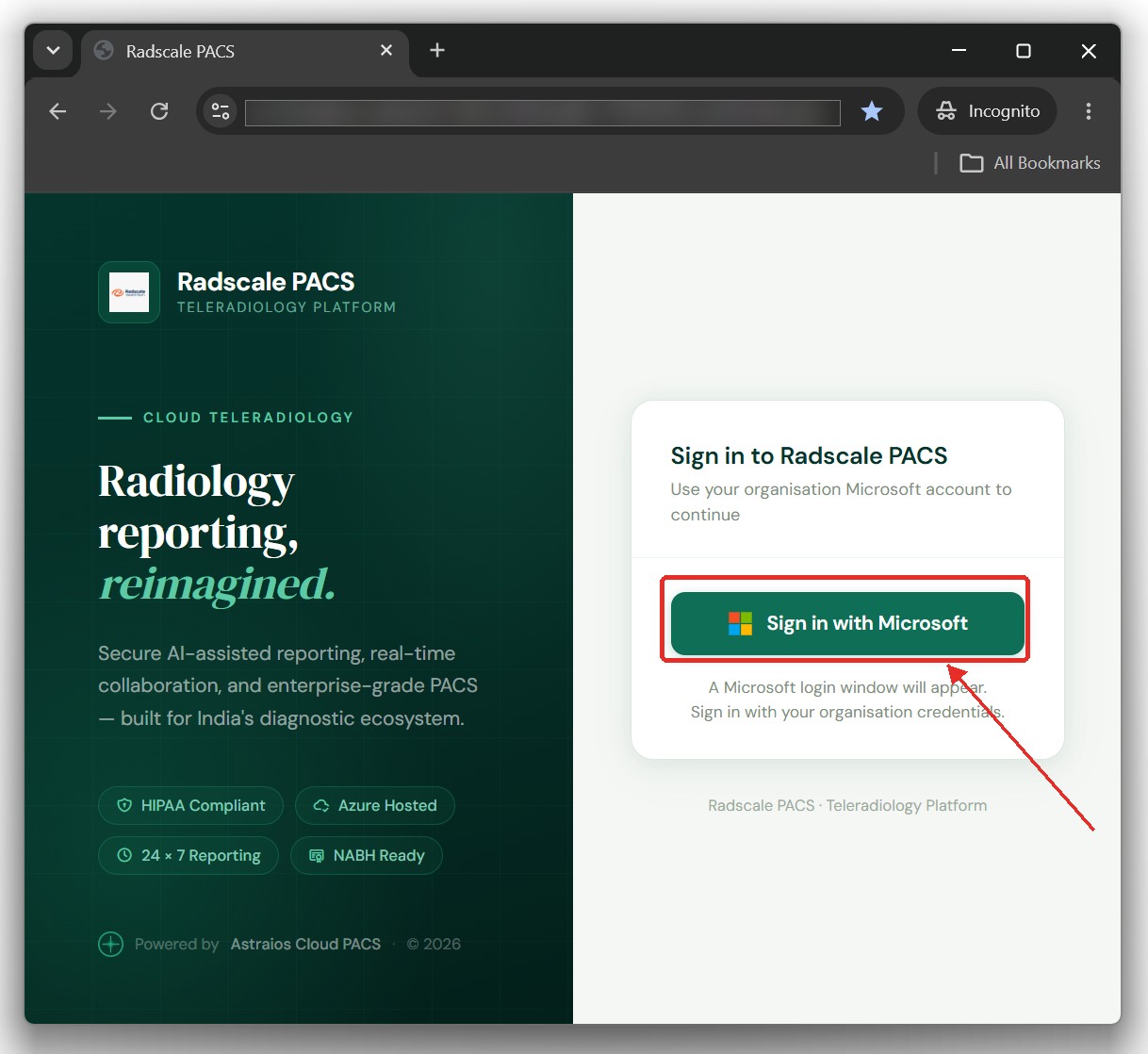 The CloudPACS sign-in screen.
 -
Confirm your organisational account and click Next.
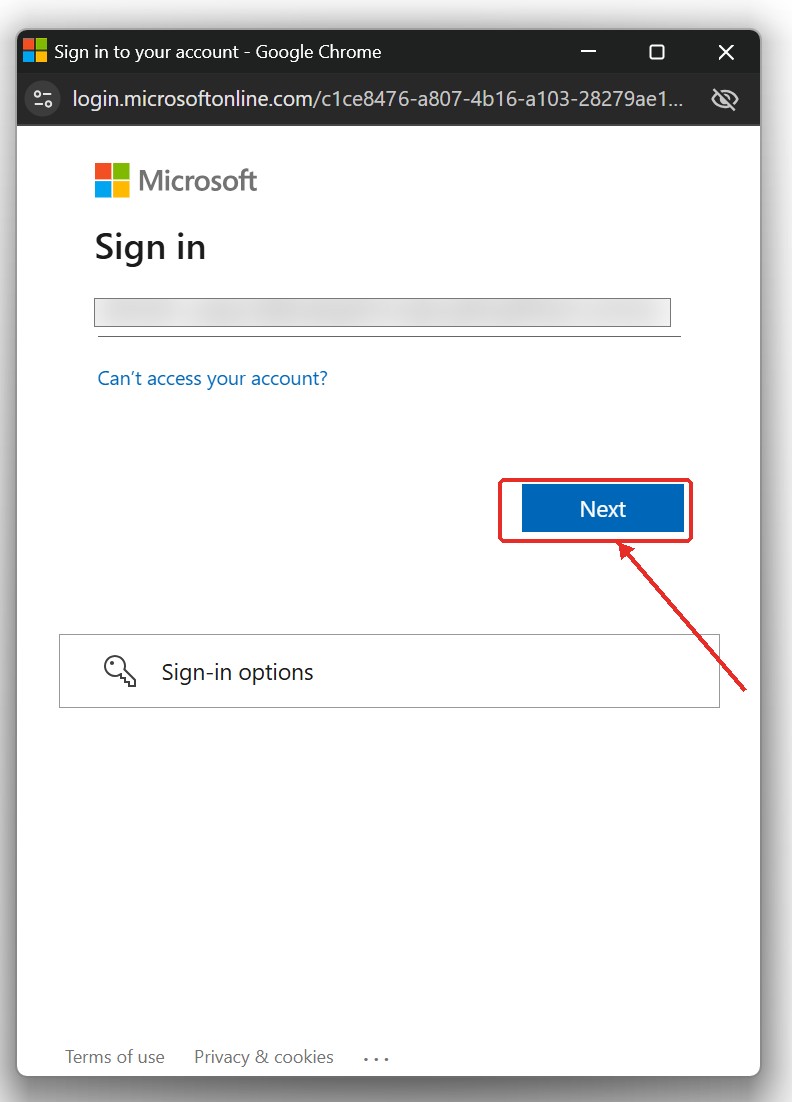 Confirm your Microsoft account.
 -
Enter your password and click Sign in.
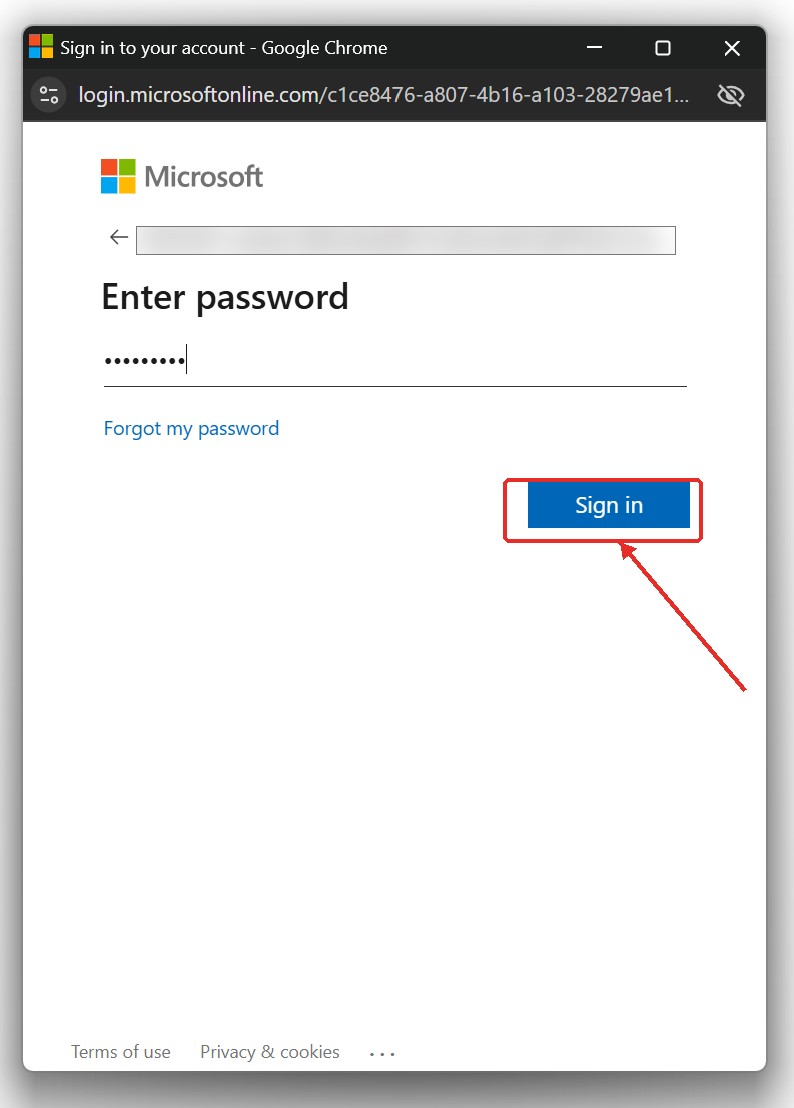 Enter your password.
 -
Optionally choose whether to stay signed in — this reduces future sign-in prompts.
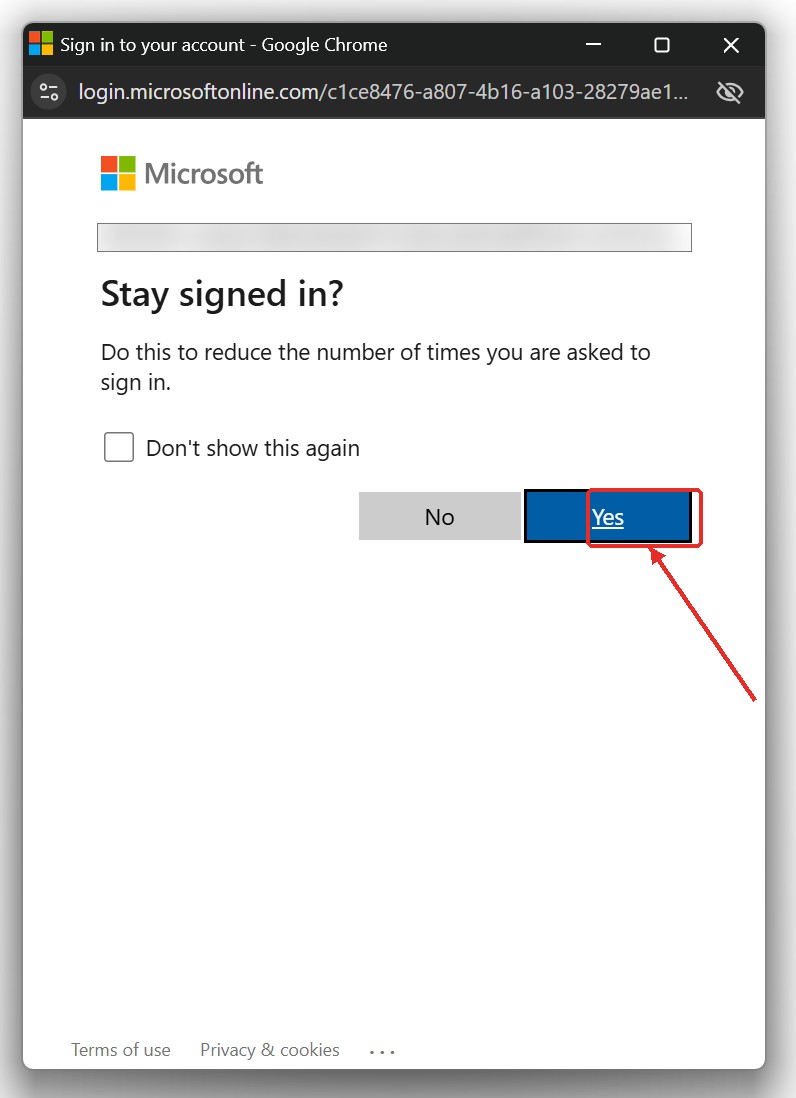 "Stay signed in?" — optional.
Your account must already exist in CloudPACS and be linked to your Microsoft account (Entra ID) by your Administrator before sign-in will work. If sign-in fails, contact your Administrator to confirm this step has been completed.
Signing out
Use Sign out at the bottom of the left sidebar.
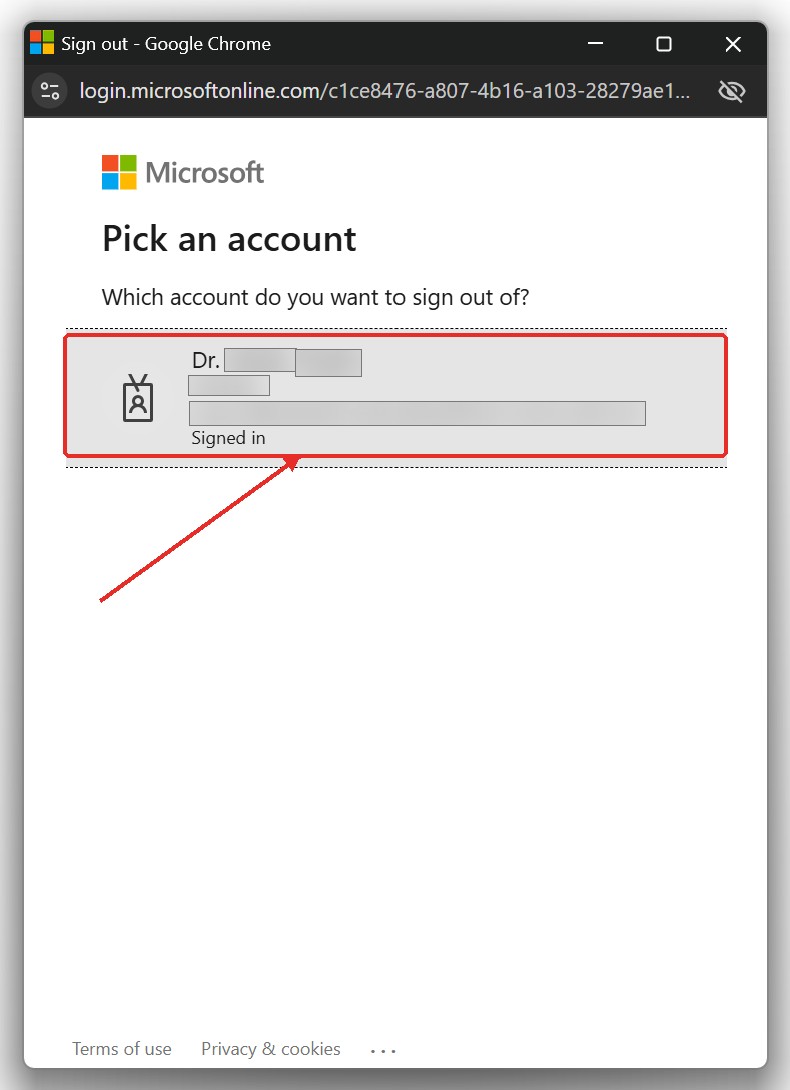 Sign out via the sidebar — this signs you out of your Microsoft account, not just CloudPACS.
Signing out also signs you out of your Microsoft account session, not just CloudPACS.