Managing radiologists
The Radiologists screen is a directory for reviewing and managing existing accounts. New radiologists are added through the Upload Radiologist bulk-upload tool — not typed in here one at a time.
The directory
At the top, four counters summarise the directory: Total Radiologists, Active, Entra Provisioned, and Profiles Uploaded. Filter by search, active status, or Entra sign-in status.
| Field | Description |
|---|---|
| Doctor | Photo (or initials), name, and email |
| User ID | The radiologist's unique CloudPACS ID |
| Tier | T1, T2, or T3 — set automatically from years of experience when the profile was uploaded |
| Specialty / Modalities | The doctor's clinical specialty and the imaging modalities they read |
| Hospital | Primary affiliated hospital, if set |
| Active | Whether the doctor can currently be allocated studies and sign in |
| Entra | Whether a Microsoft sign-in account has been linked — must be linked before the doctor can sign in |
| KYC | Verification status |
 The Radiologists directory table.
Actions
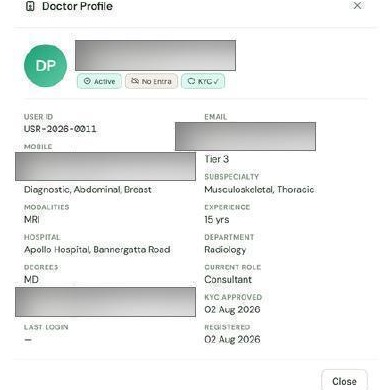
- View profile — opens a read-only summary: contact details, tier, specialty, subspecialty, modalities, experience, hospital, department, qualifications, licence number, and account dates.
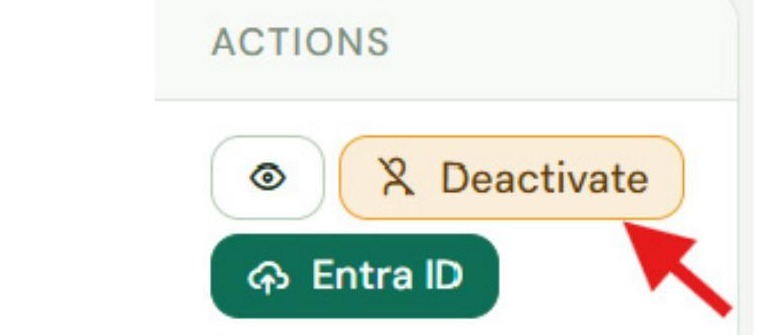
- Activate / Deactivate — toggles whether the doctor can be allocated new studies and can sign in.
- Assign Entra ID — links the account to the doctor's Microsoft / organisational account. This option only appears for accounts that don't have one linked yet.
 The Actions column: View, Activate/Deactivate, Assign Entra ID.
 Doctor Profile — the View profile overlay.
A radiologist added via Upload Radiologist is created active and verified, but cannot sign in until you separately assign their Entra ID. This is a required second step, not optional.
Assigning an Entra ID
- Click Assign Entra ID on the doctor's row.
- Paste the doctor's Azure Entra Object ID — obtained from your organisation's Microsoft 365 / Entra admin.
- Click Save.
The doctor can now sign in with their Microsoft account.
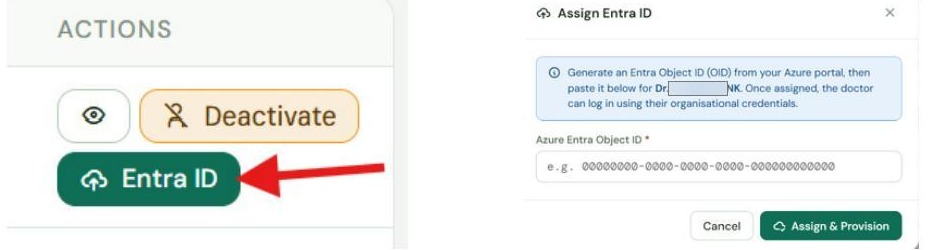 The Assign Entra ID window.