Managing hospitals
The Hospitals screen works the same way as Radiologists: a directory for existing accounts, with new hospitals added via Upload Hospital.
The directory
Counters at the top: Total, Active, Entra Provisioned, KYC Enabled. Filter by search, active status, Entra status, or KYC status.
| Field | Description |
|---|---|
| Hospital | Name and hospital type |
| Code | The hospital's unique CloudPACS code |
| City / State | Location |
| Staff Name / Contact | The primary staff contact on file |
| Active | Whether the hospital can currently upload studies and sign in |
| Entra | Whether a Microsoft sign-in account has been linked |
| KYC | Verification status |
 The Hospitals directory table.
Actions
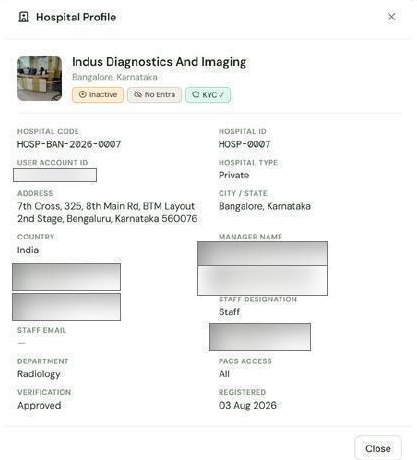
- View profile — hospital code and ID, type, full address, manager and staff contact details, department, PACS access level, verification status, and registration date.
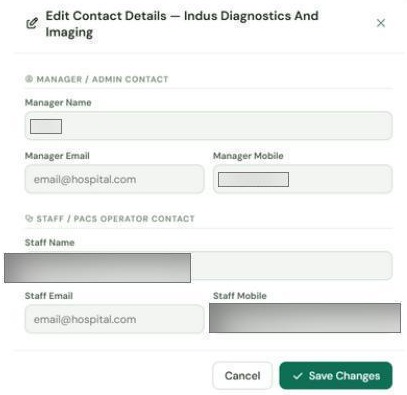
- Edit contacts — update the manager's and staff contact's name, email, and mobile number directly from the directory.
- Activate / Deactivate
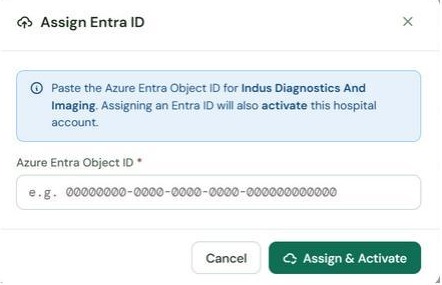
- Assign Entra ID — links the hospital's staff sign-in account. New hospitals from bulk upload start Inactive; assigning an Entra ID also activates the account automatically.
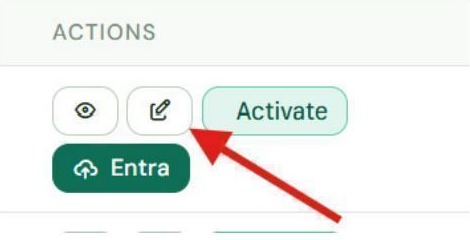 The Actions column: View, Edit, Activate/Deactivate, Entra.
 Hospital Profile — the View profile overlay.
 Edit Contact Details — the Edit action.
 The Assign Entra ID window for a hospital.